When you have issues to update/install V3.2.3, contact esolutions@bpost.be
Theme compatibility
Our plug-in has full compatibility with these themes: Woo standard themes, eLaventa, Tsubaki, SYDNEY.
If you’re not using one of the themes above, make sure to test that all features work correctly after setting up your plug-ins, including check-out.
A. ways to update (install) the plug-in your WooCommerce store
>Update / Install directly in Wordpress:
If you have auto-updates enabled in Wordpress, your version is already updated to V3.2.3.
Update:
If auto-updates is not enabled, search in the ‘Plugins’ menu in WordPress for the Bpost-shipping-platform plug-in and
in the small pop-up, click on "update now" .

Go to Settings > Bpost Settings and insert your new keys to get started (see beneath at B. Link your bpost account to your WooCommerce store)
Install:
Download and install the plugin "bpost-shipping-platform" from WordPress dashboard.
Activate the plugin through the ‘Plugins’ menu in WordPress.
Go to Settings > Bpost Settings and insert your keys to get started (see beneath at B. Link your bpost account to your WooCommerce store)
>Update / Install from the Bpost plug-ins portal:
1. Go to https://plugins.bpost.be/downloads/plugins and sign in to your account.
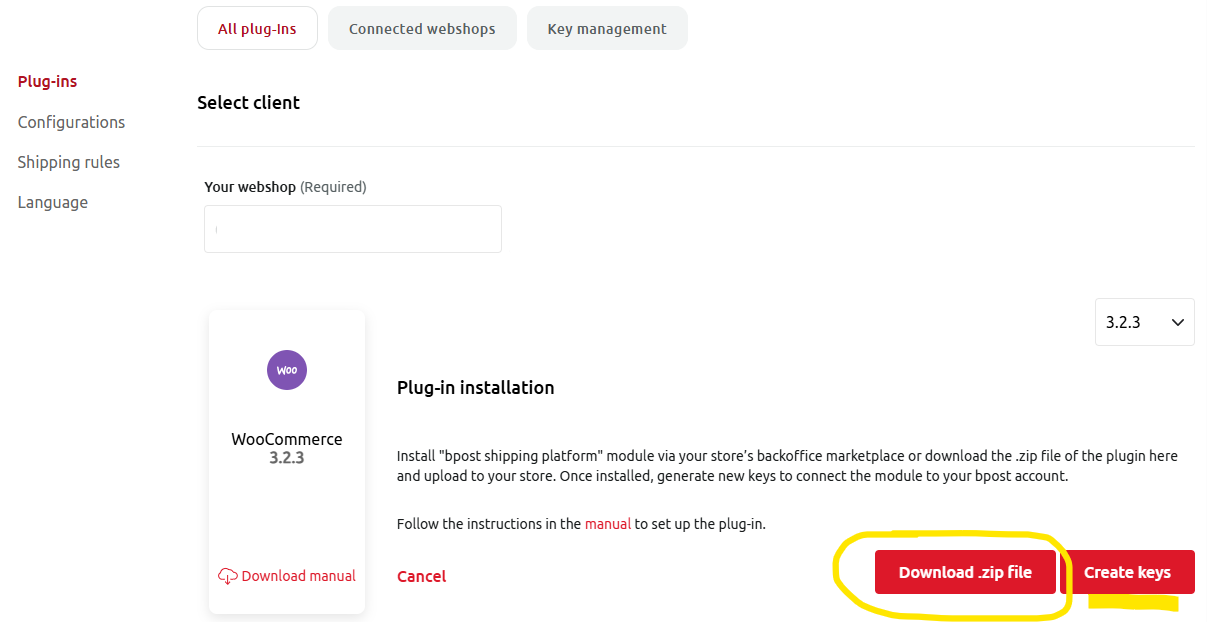
2. Select ‘WooCommerce’ from the list and download the ZIP file
3. Navigate to ‘Plug-ins’ in your WordPress dashboard
4. Upload and activate the plug-in from your WooCommerce store
• Click Add New > Upload Plug-in
• Select the ZIP file you downloaded and click Install Now
• Once installed, activate the plug-in from your list view
B. Link your bpost account to your WooCommerce store
5. Use provided API keys to link your bpost account to your WooCommerce store:
a. Access plugins.bpost.be > Settings > Plug-ins > Key management.
b. Click on “Create new keys”.
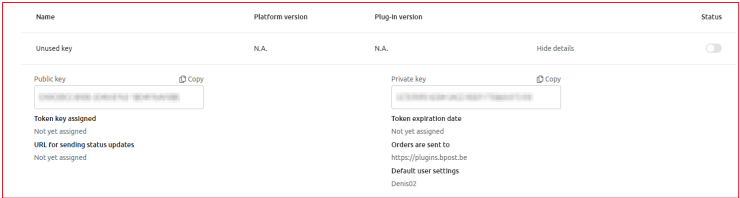
c. Open the key you just created and copy both “Public key” and “Private key”.
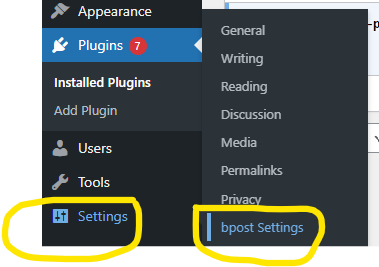
d. Insert both keys into your WordPress environment, through Settings(in left column, almost at the bottom) > click bpost settings. Don’t forget to save.
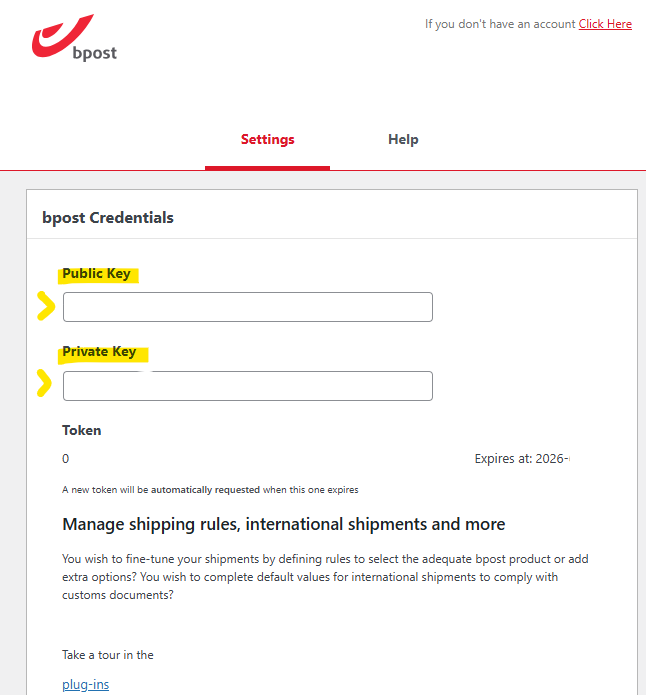
e. Once linked, your WooCommerce store will appear in plugins.bpost.be > Settings > Plug-ins > Connected webshops.
>You can now continue using your updated Woocommerce plug-in.
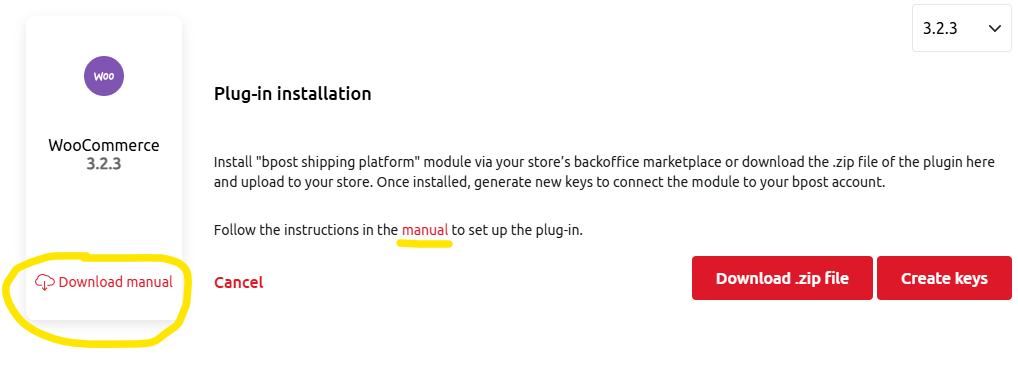
If you need to setup also other features in your plug-in , you can download the complete manual in the plug-in portal :